
Have you ever sat down to type, only to find your keyboard locked and nothing happens when you press the keys? It’s frustrating, confusing, and can bring your work or fun to a sudden stop.
If your keyboard is locked and you can’t type anything, you’re not alone—and the good news is, this problem usually has simple fixes. Keep reading, and you’ll learn easy steps to unlock your keyboard and get back to typing in no time.
Don’t let a frozen keyboard hold you back any longer!
Common Causes Of A Locked Keyboard
Sometimes your keyboard may stop working and you cannot type anything. This can be very frustrating, especially if you need to use your computer fast. Understanding why your keyboard is locked helps you fix it.
There are a few common reasons why keyboards get locked. These reasons include problems with the hardware, software issues, or even accidental key presses.
Hardware Issues
Hardware problems can cause your keyboard to stop working. If the keyboard is not connected properly, it may not respond. Dust, dirt, or damage can also block the keys.
Loose cables, broken parts, or worn-out keys can all lead to a locked keyboard. Sometimes, the USB port or wireless receiver is the problem.
- Loose or damaged keyboard cable
- Faulty USB port or wireless receiver
- Physical damage to keys or keyboard
- Dirt or dust blocking keys
Software Glitches
Software errors can stop your keyboard from working. Sometimes your computer’s operating system has bugs or conflicts that freeze the keyboard. Drivers, which help your keyboard work, can also cause problems.
Updates or new software installations can create issues with keyboard functions. Sometimes the keyboard settings get changed by mistake.
- Outdated or corrupted keyboard drivers
- Operating system bugs or conflicts
- Software updates causing errors
- Incorrect keyboard settings
Accidental Key Presses
You might have pressed a key or a key combination that locks the keyboard. Some keyboards have a “lock” key or shortcut that stops typing. This is common on laptops and some external keyboards.
Sticky keys or filter keys settings can also cause your keyboard to seem locked. These features help people with disabilities but can block normal typing if turned on by mistake.
- Pressed keyboard lock key or shortcut
- Sticky Keys or Filter Keys turned on
- Function keys that disable typing
- Unintended key combinations
Basic Troubleshooting Steps
If your keyboard is locked and you cannot type, try some simple fixes first.
These steps help find the problem and get your keyboard working again quickly.
Restart Your Computer
Restarting your computer can fix temporary errors that stop your keyboard from working.
Save your work before you restart to avoid losing data.
Check Keyboard Connections
A loose or damaged connection can cause the keyboard to stop working.
- Make sure the keyboard cable is firmly plugged in.
- If it is wireless, check the batteries and connection status.
- Look for any visible damage on the cable or keyboard.
Try A Different Usb Port
Sometimes the USB port itself may be the problem. Testing another port can help.
| USB Port | Reason to Try |
| Front Ports | Easy access but may have less power |
| Back Ports | Usually direct to motherboard, more stable |
| USB Hub | May cause issues if not powered |
Fixes For Windows Keyboards
Sometimes your keyboard may stop working and you cannot type. This can happen on Windows computers. There are simple ways to fix this problem.
This guide shows easy fixes to get your keyboard working again fast.
Disable Filter Keys
Filter Keys can block some keyboard inputs. Turning it off may solve the typing problem.
- Press Windows key + I to open Settings.
- Click on "Ease of Access."
- Select "Keyboard" from the left menu.
- Find "Filter Keys" and toggle it off.
- Test your keyboard to see if it works now.
Update Or Reinstall Keyboard Drivers
Old or broken drivers can stop your keyboard from working. Update or reinstall them to fix issues.
- Right-click the Start button and select "Device Manager."
- Expand "Keyboards" and right-click your keyboard device.
- Choose "Update driver" and select "Search automatically."
- If update does not help, right-click again and choose "Uninstall device."
- Restart your computer to reinstall the driver automatically.
Check For Malware
Malware can block keyboard input or cause strange behavior. Scan your PC to find and remove malware.
| Malware Check Tips | Actions |
|---|---|
| Use trusted antivirus software | Run a full system scan |
| Update antivirus definitions | Keep software current |
| Delete or quarantine threats | Follow antivirus instructions |
| Restart after cleaning | Check if keyboard works |

Credit: www.wikihow.com
Fixes For Mac Keyboards
If your Mac keyboard is locked, you cannot type anything. This problem can happen for many reasons.
Here are some simple fixes you can try to get your keyboard working again.
Reset The Smc
The System Management Controller (SMC) controls hardware functions on your Mac. Resetting it can fix keyboard issues.
To reset the SMC:
- Shut down your Mac.
- On a MacBook with a non-removable battery, press Shift + Control + Option keys and the power button at the same time for 10 seconds.
- Release all keys and then press the power button to turn on your Mac.
- For desktop Macs, unplug the power cord, wait 15 seconds, then plug it back in and turn on your Mac.
Reset The Pram/nvram
PRAM and NVRAM store settings related to your keyboard and other hardware. Resetting them can fix stuck keys.
Follow these steps to reset PRAM/NVRAM:
- Shut down your Mac.
- Turn it on and immediately press Option + Command + P + R keys together.
- Hold these keys for about 20 seconds.
- Release the keys and let your Mac start normally.
Check Keyboard Preferences
Sometimes keyboard settings can cause typing problems. Checking preferences can help you find issues.
To check keyboard preferences:
- Open System Settings or System Preferences.
- Click on Keyboard.
- Check if “Enable Slow Keys” or “Enable Mouse Keys” is on. Turn them off if they are.
- Test your keyboard after changing settings.
Using On-screen Keyboard As A Temporary Solution
Sometimes your physical keyboard stops working and you cannot type. This can be frustrating if you need to use your computer quickly.
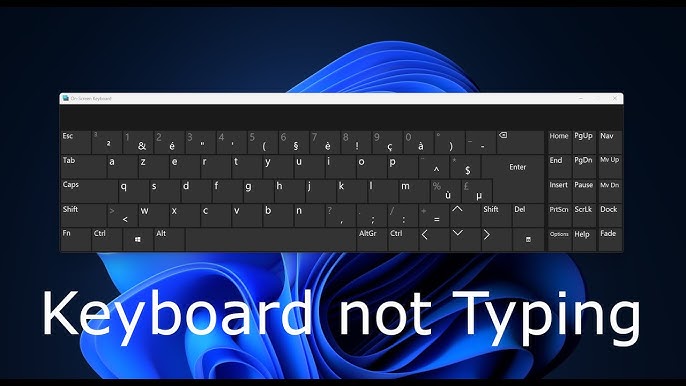
The on-screen keyboard helps you type without a physical keyboard. It works with your mouse or touch screen as a temporary fix.
Accessing On-screen Keyboard On Windows
Windows has a built-in on-screen keyboard you can open easily. It works on all Windows versions from Windows 7 to Windows 11.
You can use the on-screen keyboard to type by clicking keys with your mouse or tapping on a touch screen.
- Click the Start button or press the Windows key.
- Type "On-Screen Keyboard" in the search box.
- Select the On-Screen Keyboard app from the results.
- The keyboard will appear on your screen and is ready to use.
Using On-screen Keyboard On Mac
Mac computers also have an on-screen keyboard called the Keyboard Viewer. It lets you type with your mouse or trackpad.
You need to enable the Keyboard Viewer first in your system settings to use it.
- Open System Preferences from the Apple menu.
- Click on Keyboard.
- Check the box for "Show keyboard and emoji viewers in menu bar".
- Click the keyboard icon in the menu bar and choose "Show Keyboard Viewer".
- The on-screen keyboard will open and you can start typing.

Credit: www.reddit.com
Preventing Future Keyboard Lock Issues
Keyboard lock problems can stop you from typing. You can avoid these issues with simple care and habits.
Taking small steps helps keep your keyboard working well for a long time.
Regular Software Updates
Software updates fix bugs that cause keyboard problems. Keep your computer and drivers up to date.
Check for updates often. Installing updates can stop the keyboard from locking unexpectedly.
- Update your operating system regularly
- Install keyboard driver updates
- Restart your device after updates
Avoiding Physical Damage
Physical damage can cause your keyboard to lock or stop working. Handle your keyboard with care.
Keep liquids and heavy objects away from your keyboard to prevent damage.
- Do not drop or hit the keyboard
- Avoid eating or drinking near the keyboard
- Store the keyboard in a safe place when not in use
Proper Keyboard Cleaning
Cleaning your keyboard helps avoid stuck keys and keyboard lock. Use safe methods to clean it.
Do not spray liquid directly on the keyboard. Use a soft cloth and gentle cleaning tools.
- Turn off the computer before cleaning
- Use compressed air to remove dust
- Wipe keys with a lightly dampened cloth
- Avoid harsh chemicals or sprays

Credit: www.wikihow.com
Frequently Asked Questions
Why Is My Keyboard Suddenly Locked?
Your keyboard may be locked due to a stuck key or accidental activation of the keyboard lock feature. Check if the "Num Lock" or "Scroll Lock" keys are enabled. Restarting your computer can also resolve temporary glitches causing the lock.
How Do I Unlock My Keyboard On Windows?
Press the "Windows key + Spacebar" or "Ctrl + Alt + Del" to unlock your keyboard. You can also try unplugging and reconnecting the keyboard or restarting your PC to fix the issue.
Can A Keyboard Lock Be Caused By Software Issues?
Yes, software conflicts or outdated drivers can lock your keyboard. Update your keyboard drivers through Device Manager or reinstall them. Running a virus scan can also help if malware is causing the problem.
What Should I Do If My Keyboard Is Unresponsive?
Try disconnecting and reconnecting the keyboard or using a different USB port. Restart your device and check for driver updates. If wireless, ensure the keyboard has fresh batteries and is properly paired.
Conclusion
A locked keyboard can cause real frustration. Small fixes often solve the problem fast. Check your keyboard settings and cables first. Restart your computer to refresh everything. Try unplugging and plugging it back in. Sometimes, a simple step is all you need.
Stay calm and follow easy troubleshooting steps. Your typing will return soon enough. Don’t let a locked keyboard stop your work. Keep these tips handy for next time.