
Have you ever found yourself locked out or struggling to change your Kwikset smart lock settings? Knowing how to reset your Kwikset smart lock code can save you time, stress, and even money.
In this guide, you’ll learn simple, clear steps to reset your lock quickly and securely. Whether you want to update your code or troubleshoot a problem, mastering this process puts control back in your hands. Keep reading to unlock the secrets of managing your Kwikset smart lock with ease.
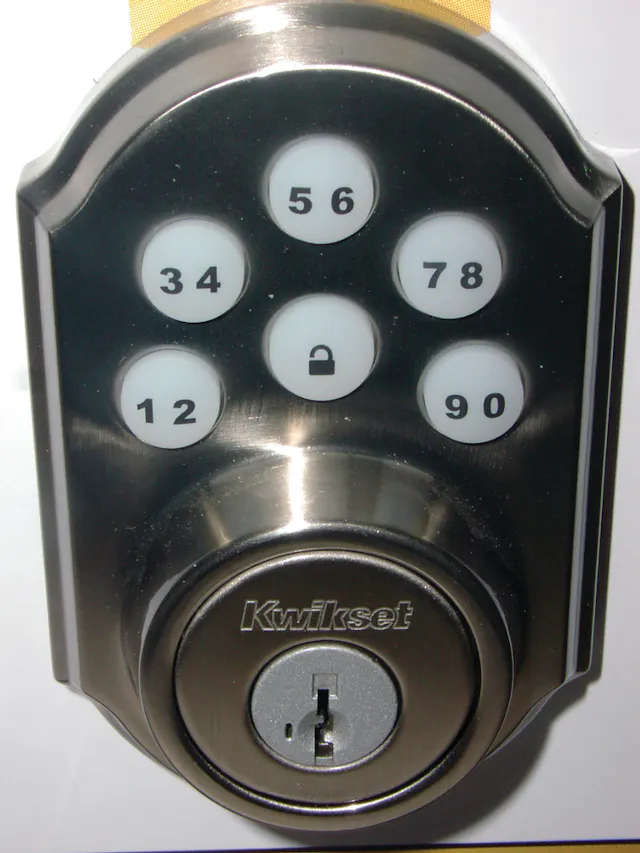
Credit: www.locksmithledger.com
Kwikset Smart Lock Basics
Kwikset smart locks are electronic locks for home doors. They let you lock and unlock doors without keys.
These locks use codes, apps, or voice commands. You can control them from your phone or keypad.
Key Features
Kwikset smart locks come with many useful features. They offer security and convenience for your home.
- Keyless entry with personalized codes
- Remote control via smartphone app
- Auto-locking after a set time
- Compatibility with smart home systems
- Easy installation on most doors
- Temporary codes for guests or workers
Common Issues
Some users face problems with their Kwikset smart locks. Knowing common issues helps fix them fast.
Common problems include code reset difficulties and connection errors with apps.
- Forgetting or losing the reset code
- Lock not responding to keypad inputs
- Battery draining faster than expected
- Problems syncing with the mobile app
- Lock freezing or not locking properly
When To Reset Your Code
Resetting your Kwikset smart lock code is important for safety and convenience. You should reset your code in certain situations to keep your home secure.
This guide explains when you need to reset your code and why it matters for your lock’s security.
Lost Or Forgotten Code
If you forget your Kwikset smart lock code, you cannot open the door. Resetting the code helps you regain access quickly.
Reset the code to create a new one that you can remember easily and keep safe.
Security Concerns
Change your code if you think someone else knows it. This keeps your home safe from unwanted access.
Regularly resetting your code helps protect your smart lock from hacking or theft.
- After losing keys or codes
- When someone moves out
- After a break-in attempt
New User Setup
When you first get your Kwikset smart lock, you need to set a code. Resetting the code lets you choose one that fits your needs.
This ensures only trusted users have access and you can control who enters your home.
Preparing For Reset
Resetting your Kwikset smart lock needs some preparation. This helps the process go smoothly and safely.
Knowing what to do before you start can save time and avoid problems with your lock.
Gathering Tools
Before resetting, collect the tools you will need. Having everything ready makes the reset easier.
- Small flathead screwdriver
- Battery pack or fresh batteries
- User manual or quick start guide
- Phone or device with the Kwikset app
- Flashlight for better visibility
Locating The Reset Button
The reset button is often hidden. You must find it to start the reset process.
| Lock Model | Reset Button Location |
| Kwikset SmartCode 909 | Inside the battery compartment |
| Kwikset Halo | Back of the lock under the cover |
| Kwikset Premis | Inside the keypad housing |
Backup Access Options
Before resetting, know how to access your home if the lock resets incorrectly. Backup options help you stay safe.
- Keep a physical key nearby
- Use a trusted family member’s code
- Have your phone ready with the app
- Inform someone you trust about the reset

Credit: www.youtube.com
Step-by-step Reset Process
Resetting your Kwikset Smart Lock code is simple and quick. This guide helps you clear old codes safely.
Follow the steps below to access the lock, reset it, and set a new code easily.
Accessing The Lock
Start by opening the door where your Kwikset Smart Lock is installed. You need to access the lock's interior.
Remove the battery cover on the inside of the lock. This gives you access to the reset button.
Performing The Reset
Press and hold the reset button inside the lock for about 5 seconds. Release it when the light blinks.
The lock will erase all stored codes and return to factory settings. This clears old access codes.
- Find the reset button near the battery compartment
- Hold the button until the light blinks
- Release the button to complete the reset
Setting A New Code
After reset, add your new access code using the keypad on the lock. Follow the instructions in your manual.
Enter your new code and press the lock or unlock button to save it. Test the code before closing the door.
- Enter new code on the keypad
- Press the lock or unlock button to save
- Test the new code for proper function
Troubleshooting Reset Problems
If you're having trouble resetting your Kwikset Smart Lock, you're not alone. Many users face common issues with the reset process.
In this guide, we will explore solutions to common reset problems. These include the reset button not responding, code not saving, and battery issues.
Reset Button Not Responding
The reset button on your Kwikset Smart Lock may not respond. This can happen for several reasons. Check the lock for physical obstructions or damage.
- Ensure the lock is properly installed on the door.
- Inspect the button for any visible damage.
- Try pressing the button with a different tool.
Code Not Saving
Sometimes, the code you enter may not save. This can be frustrating. Make sure you follow the instructions carefully.
Check if the lock is in programming mode. Ensure you hear the confirmation sound after entering your code.
Battery Issues
Battery issues can affect the reset process. If the battery is low, the lock may not function properly. Always check the battery level first.
| Battery Status | Action |
| Low | Replace with new batteries |
| Charged | Check for other issues |
Keeping your Kwikset Smart Lock in good condition ensures its reliability. Regular maintenance can prevent many common reset problems.
Tips For Secure Code Management
Managing your Kwikset smart lock reset code safely is important. It helps keep your home secure and prevents unauthorized access.
Use simple steps to protect your reset code from being stolen or guessed by others.
Choosing Strong Codes
Pick codes that are hard to guess. Avoid simple numbers like "1234" or "0000". Use a mix of numbers that do not relate to your personal information.
- Do not use birthdays or phone numbers
- Choose codes with random digits
- Use longer codes if your lock supports them
Regular Code Updates
Change your reset code often to reduce risks. Regular updates make it harder for others to use old codes.
Set a schedule to update your code every few months or after anyone new has access.
- Change codes every 3 to 6 months
- Update after guests or workers use your lock
- Keep a record of code changes in a safe place
Sharing Codes Safely
Only share your reset code with trusted people. Avoid sending codes through insecure messages or email.
Use face-to-face communication or secure apps to share codes. Remove access when it is no longer needed.
- Give codes only to people you trust
- Use secure methods to send codes
- Delete codes from devices after sharing
- Revoke access if someone no longer needs it
Additional Kwikset Smart Lock Features
Kwikset smart locks offer many features that make home security simple and effective. These features help you manage your lock with ease and confidence.
Explore key aspects like remote access, smart home integration, and battery management to fully understand what these locks can do for you.
Remote Access
Remote access lets you control your lock from anywhere using your smartphone. This feature is handy for letting in guests when you are not home.
- Access your lock through a mobile app.
- Receive real-time notifications on lock status.
- Monitor entry and exit logs remotely.
Integration With Smart Home Systems
Kwikset smart locks work well with various smart home systems. They connect seamlessly to create a unified home automation experience.
Compatible with:
- Amazon Alexa
- Google Assistant
- Apple HomeKit
Battery Life And Alerts
Battery life is crucial for the consistent operation of smart locks. Kwikset provides alerts to ensure you replace batteries on time.
| Feature | Description |
| Battery Alerts | Receive notifications when battery is low |
| Long Battery Life | Efficient power usage for extended periods |
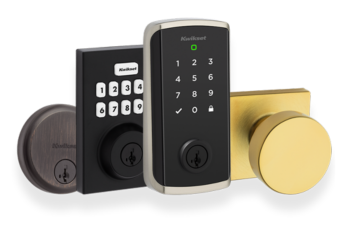
Credit: www.kwikset.com
Frequently Asked Questions
How Do I Find My Kwikset Smart Lock Reset Code?
You can find the reset code in your lock’s user manual or on the device packaging. If unavailable, visit Kwikset’s official website or contact customer support for assistance.
Can I Reset My Kwikset Lock Without The Reset Code?
Yes, some models allow manual reset by pressing the reset button inside the lock. Refer to your lock’s specific instructions for accurate steps.
What Happens If I Enter The Wrong Reset Code?
Entering the wrong reset code multiple times may lock the device temporarily. Always double-check the code before attempting a reset to avoid delays.
Is The Kwikset Reset Code The Same For All Models?
No, reset codes vary by Kwikset model and lock type. Always verify the code specific to your lock model for successful resetting.
Conclusion
Resetting your Kwikset smart lock code keeps your home secure. Follow steps carefully to avoid mistakes. Keep your new code simple but strong. Change codes regularly for better safety. Always store your reset instructions in a safe place. This helps you stay in control of your lock.
Taking these actions protects your home and peace of mind. Stay safe with easy Kwikset smart lock resets.