
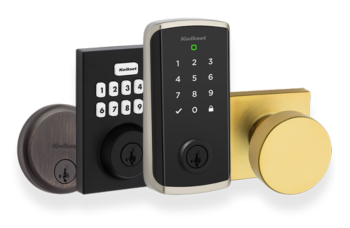
If your Kwikset smart lock isn’t working the way it should, resetting it might be the quick fix you need. Whether you forgot your code, want to clear old settings, or are troubleshooting connection issues, knowing how to reset your lock can save you time and frustration.
This guide will walk you through simple steps to get your Kwikset smart lock back to its original state—so you can regain control and keep your home secure. Keep reading to discover exactly how to reset your lock easily and safely.

Credit: www.youtube.com
Kwikset Smart Lock Features
Kwikset smart locks provide modern security for your home. They combine technology with ease of use.
Learn about the key features that make these locks a smart choice for home security.
Keyless Entry Benefits
Keyless entry lets you lock and unlock doors without keys. It uses codes or smartphones instead.
- No need to carry physical keys
- Easy to share access with family or friends
- Improves home security by avoiding lost keys
- Allows quick access during emergencies
Remote Access Capabilities
Remote access lets you control your lock from anywhere using an app. You can check lock status anytime.
| Feature | Description | Benefit |
| Lock/Unlock Remotely | Control door via smartphone app | Convenient access without being home |
| Activity Alerts | Receive notifications for lock activity | Stay informed about who enters |
| Temporary Codes | Create time-limited access codes | Grant access for guests or workers |
Battery And Power Options
Kwikset smart locks use batteries for power. They notify you when battery levels are low.
The lock supports these battery types:
- 4 AA alkaline batteries
- Rechargeable battery packs (model dependent)
Battery life can last up to 6-12 months depending on usage.
Low battery alerts help avoid lockouts.
Reasons To Reset Your Kwikset Lock
Resetting your Kwikset smart lock can solve many common issues. It helps keep your lock working well and secure.
Here are some important reasons why you might need to reset your Kwikset lock.
Forgotten Codes
If you forget the access code, you cannot open the lock. Resetting the lock lets you erase old codes and add new ones.
This keeps your home safe and lets you control who can enter.
Security Concerns
You may want to reset your lock if you think someone else knows your code. Resetting removes all stored codes and settings.
This helps protect your home from unwanted access and keeps your lock secure.
Software Glitches
Smart locks sometimes have software problems that stop them from working right. Resetting the lock can fix these glitches.
It restores the lock to its original state and helps it work smoothly again.
Preparing To Reset
Resetting your Kwikset smart lock can solve many issues. It clears all stored settings. This guide helps you prepare before you reset the lock.
Preparation ensures a smooth reset process. It also protects your lock’s current setup and your safety.
Gathering Tools And Materials
Having the right tools ready saves time. You will need simple items to access and reset the lock.
- Small Phillips screwdriver
- Flathead screwdriver
- Batteries for the lock (usually AA or 9V)
- Owner’s manual or reset instructions
- Smartphone or device for reprogramming
Backing Up Settings
Save your lock’s current codes and settings. This helps you restore access after the reset.
| Setting | How to Save |
| Access Codes | Write down or screenshot codes |
| Lock Name | Note the name in your app |
| Connected Devices | List all devices paired with the lock |
| Auto-Lock Timer | Record current timer settings |
Safety Precautions
Follow safety tips to avoid damage or injury. Resetting involves handling small parts and electronics.
- Turn off power or remove batteries before starting
- Keep small screws and parts in a safe place
- Use tools carefully to avoid slipping
- Do not force any parts during removal
- Work in a well-lit area
Credit: www.youtube.com
Step-by-step Reset Guide
Resetting your Kwikset smart lock can fix many issues. It helps you start fresh with new settings.
This guide shows you how to reset the lock using different methods. Follow the steps carefully to avoid errors.
Manual Reset Process
The manual reset process clears all settings and restores the lock to factory defaults. You will need the physical lock to do this.
- Remove the battery cover on the inside of the lock.
- Take out one battery.
- Press and hold the reset button.
- While holding the button, reinsert the battery.
- Keep holding the reset button for 30 seconds.
- Release the button and close the battery cover.
- The lock will beep to confirm the reset.
Resetting Via Mobile App
You can reset your Kwikset smart lock using the mobile app if it is connected to Wi-Fi or Bluetooth. This method is quick and does not require touching the lock.
- Open the Kwikset app on your smartphone.
- Navigate to the lock settings menu.
- Find the option labeled “Factory Reset” or “Reset Lock.”
- Confirm the reset request in the app.
- Wait for the app to show that the reset is complete.
- Test the lock to ensure it is reset to default.
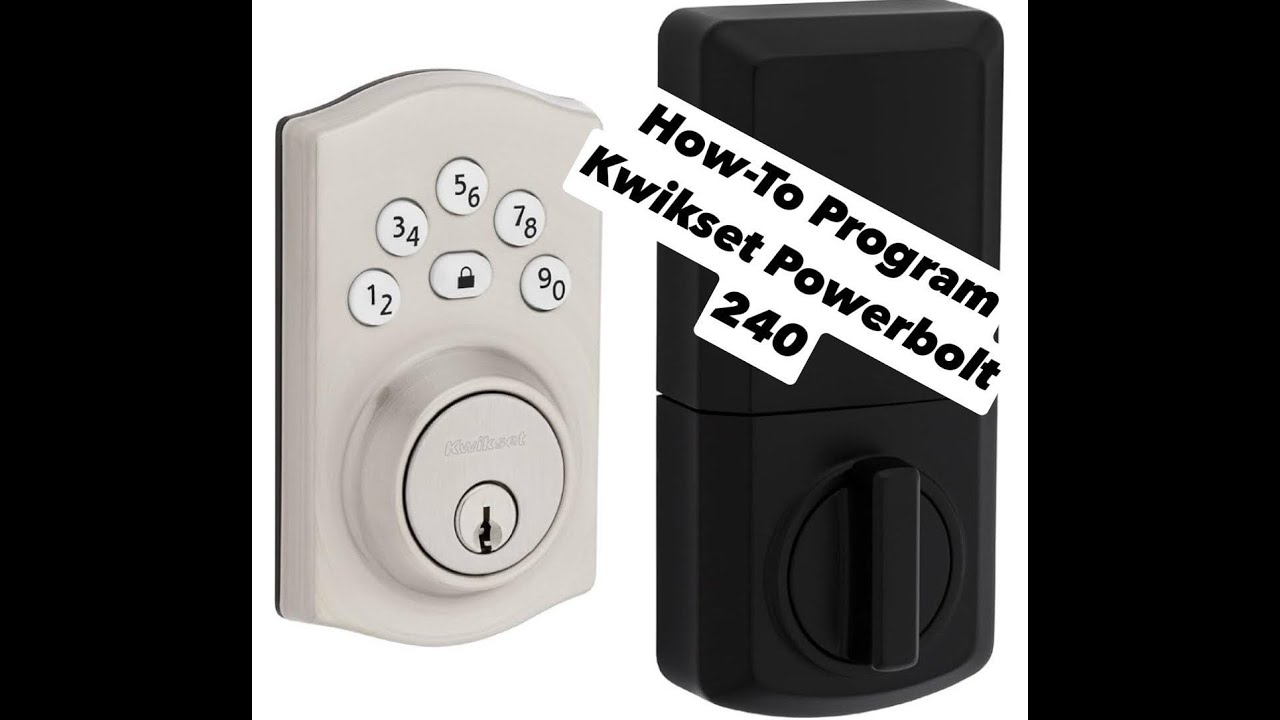
Resetting With Keypad
If your Kwikset lock has a keypad, you can reset it using a specific code sequence. This method is useful if you cannot access the app or the lock’s interior.
| Action | Details |
|---|---|
| Enter Programming Code | Type your current 6-digit programming code on the keypad. |
| Press Program Button | Press the program button located inside the lock. |
| Enter Reset Code | Input the reset sequence: 0 0 0 0 0 0 (six zeros). |
| Confirm Reset | Press the lock button to confirm. The keypad will flash. |
| Test Lock | Try locking and unlocking to check if reset worked. |
Reprogramming After Reset
Resetting your Kwikset smart lock clears all previous settings. You need to reprogram it to use it again.
This guide explains how to set new access codes, connect to Wi-Fi, and sync with smart home devices.
Setting New Access Codes
After reset, all access codes are deleted. You must add new codes for users to enter.
Use the lock's keypad or the app to create codes. Choose easy-to-remember but secure numbers.
- Open the app or go to the lock keypad
- Select "Add User" or "New Code"
- Enter a new code and save it
- Test the code to ensure it works
Connecting To Wi-fi
Your Kwikset smart lock needs Wi-Fi to work remotely. After reset, connect it to your network again.
Use the app to find your home Wi-Fi. Enter the password carefully to avoid connection issues.
- Open the Kwikset app
- Go to settings and select "Wi-Fi Setup"
- Choose your home Wi-Fi network
- Enter your Wi-Fi password
- Wait for confirmation that it is connected
Syncing With Smart Home Devices
Sync your Kwikset lock with smart home devices to control it by voice or automation.
After reset, reconnect the lock to your smart home system through the app or device settings.
- Open your smart home app (Alexa, Google Home, etc.)
- Add a new device and select your Kwikset lock
- Follow prompts to link the lock with your system
- Test commands to ensure the lock responds properly
Troubleshooting Common Issues
Kwikset smart locks offer convenience and security. Sometimes, they may face issues that need troubleshooting.
Understanding common problems and their solutions can help maintain your lock's performance.
Reset Failure Solutions
If your smart lock won't reset, try these steps. Ensure the lock is properly installed before resetting.
- Check if the lock has power by replacing the batteries.
- Ensure the reset button is pressed firmly and held for 20 seconds.
- Consult the user manual for specific reset instructions.
Battery Replacement Tips
Changing the batteries can solve many lock issues. Use the right battery type for optimal performance.
- Use alkaline batteries for better longevity.
- Avoid mixing old and new batteries.
- Replace all batteries at once to maintain power balance.
Firmware Update Steps
Updating firmware ensures your lock has the latest features and security patches. Follow these steps to update.
1. Connect your smart lock to the Kwikset app.
2. Check for updates in the app's settings menu.
3. Follow on-screen instructions to complete the update process.
Maintaining Your Kwikset Smart Lock
Keeping your Kwikset Smart Lock in good condition ensures it works well. Regular care helps avoid problems and extends the lock's life.
Follow these simple steps to maintain your smart lock effectively. Each step focuses on a specific aspect of lock care.
Regular Cleaning
Dust and dirt can affect your lock's performance. Clean your lock regularly to keep it working smoothly.
Use a soft cloth to wipe the lock. Avoid using harsh chemicals that might damage the surface.
- Wipe the keypad gently
- Clean the edges and corners
- Check for dirt in the keyhole
Periodic Code Updates
Updating your lock codes regularly enhances security. It prevents unauthorized access and keeps your home safe.
Choose unique codes that are hard to guess. Change them every few months for better security.
- Create codes with numbers and letters
- Avoid using birthdays or common numbers
- Keep a record of your codes
Battery Life Optimization
Batteries power your smart lock. Check them regularly to ensure your lock functions without interruptions.
Replace batteries when the lock signals low power. Use high-quality batteries for longer life.
- Check battery levels monthly
- Use alkaline batteries for best results
- Keep spare batteries nearby
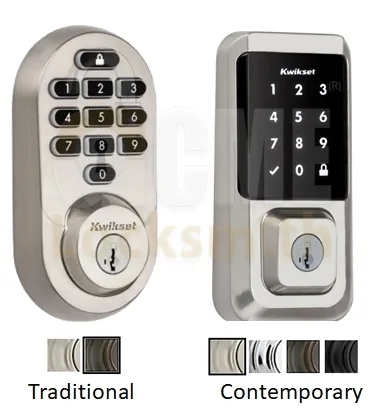
Credit: www.acmelocksmith.com
Frequently Asked Questions
How Do I Reset My Kwikset Smart Lock?
To reset your Kwikset smart lock, press the Program button for 10 seconds. Release when the lock beeps twice. This restores factory settings and clears all user codes.
Can I Reset Kwikset Lock Without A Code?
Yes, you can reset without a code by using the Program button. Hold it until the lock beeps twice. This erases all stored codes and settings.
Why Won’t My Kwikset Smart Lock Reset?
Your lock may not reset if the battery is low or dead. Replace batteries and try again. Also, ensure you press the Program button long enough.
Does Resetting Erase All User Codes?
Yes, resetting your Kwikset smart lock deletes all user codes. You must reprogram your codes after a reset to regain access.
Conclusion
Resetting your Kwikset smart lock helps keep your home secure. It only takes a few simple steps. Doing this regularly ensures your lock works properly. You can fix common issues fast by resetting. Remember to follow the instructions carefully each time.
This way, you avoid mistakes and save time. A working lock means peace of mind for you. Stay safe with a properly reset Kwikset smart lock. It’s an easy task anyone can do at home.