
Are you struggling to get your Kwikset Smart Lock set up just right? You’re not alone.
Whether you want to secure your home or enjoy the convenience of keyless entry, understanding your Kwikset Smart Lock manual is the first step. This guide will help you unlock the full potential of your smart lock quickly and easily.
Keep reading to discover simple tips, clear instructions, and insider hacks that make your smart lock work perfectly for you. Don’t let confusion slow you down—take control of your home security today!
Kwikset Smart Lock Features
Kwikset smart locks offer modern technology for home security. They provide easy access without traditional keys.
This guide explains the main features of Kwikset smart locks. You will learn about entry options, remote control, and security improvements.
Keyless Entry Options
Kwikset locks allow entry without a physical key. This makes using your door more convenient and secure.
- Use a numeric keypad to enter a code
- Operate the lock with a smartphone app
- Open the door via a connected voice assistant
- Set up multiple user codes for family or guests
Remote Access Benefits
Remote access lets you control your lock from anywhere. This adds flexibility to your home security.
| Remote Feature | Benefit |
| Lock or unlock from smartphone | Control access while away |
| Receive notifications | Know when someone enters |
| Grant temporary access | Allow visitors without a key |
Security Enhancements
Kwikset smart locks improve security by using advanced technology. They protect your home against common threats.
| Feature | Description |
|---|---|
| Encryption | Protects wireless signals from hacking |
| Auto-lock | Locks the door automatically after closing |
| Alarm technology | Detects forced entry attempts |
| Secure user codes | Prevents code sharing and misuse |
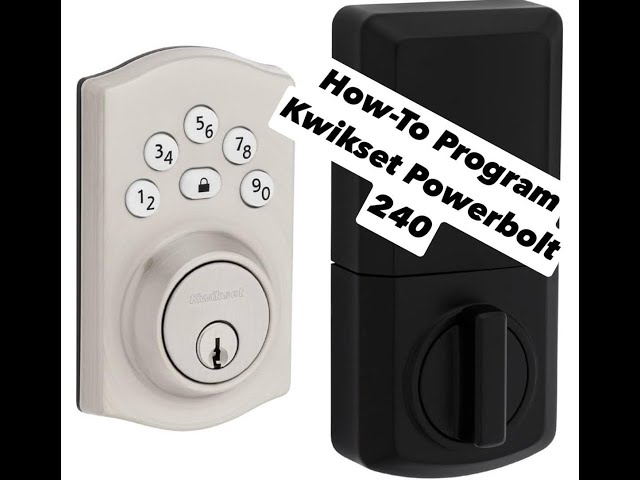
Credit: www.youtube.com
Preparing For Installation
Installing your Kwikset Smart Lock needs some preparation. Getting ready helps the process go smoothly.
Read each section carefully before you start. Check your tools, door, and parts.
Tools Needed
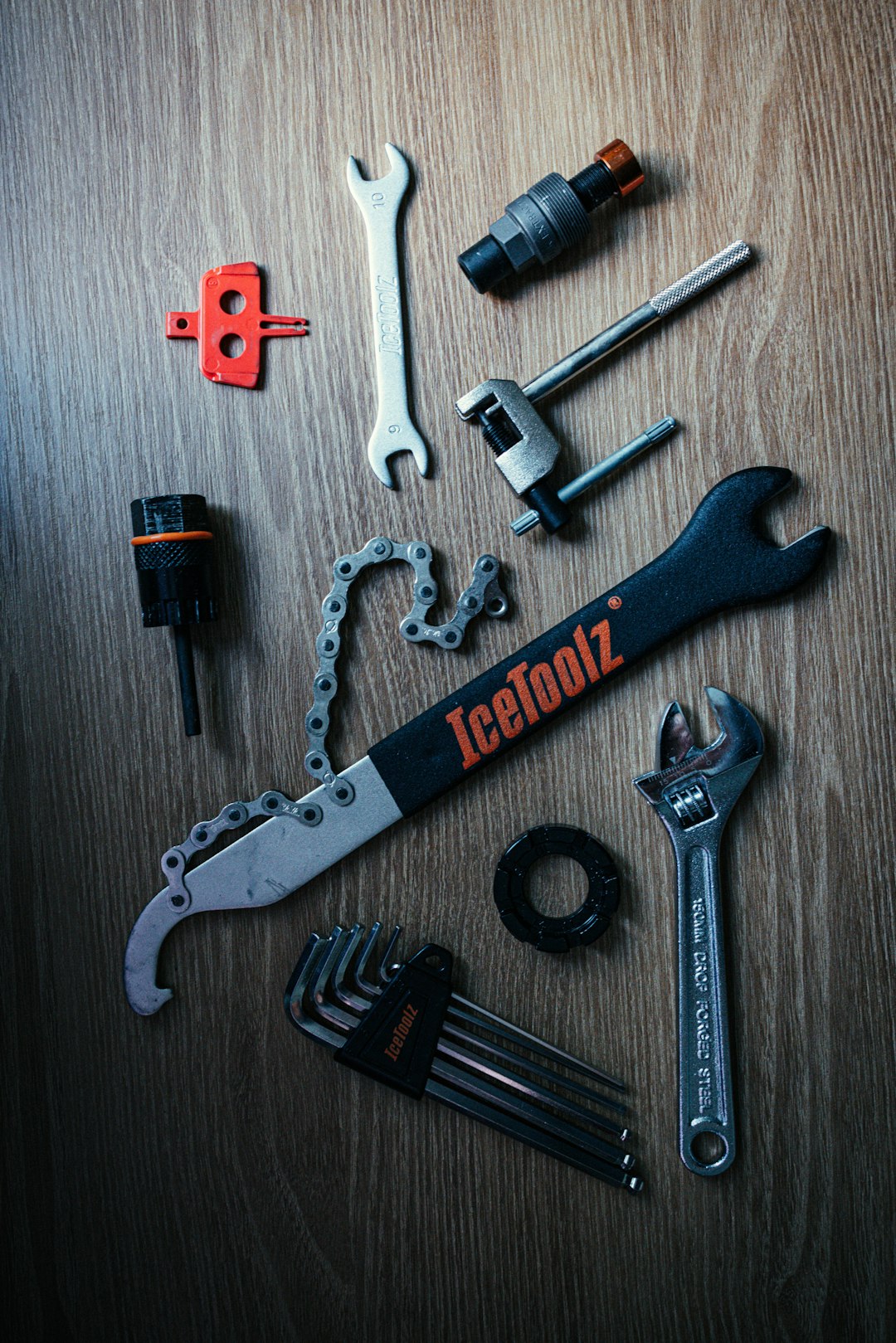
Gather these tools before you begin the installation. Having the right tools saves time and effort.
- Phillips screwdriver
- Flathead screwdriver
- Measuring tape
- Pencil
- Drill with drill bits (if needed)
- Level
Checking Door Compatibility
Not every door fits the Kwikset Smart Lock. Check these details on your door before installing.
| Door Thickness | 1 3/8 inches to 2 inches |
| Backset | 2 3/8 inches or 2 3/4 inches |
| Door Type | Wood or metal doors |
| Door Handing | Supports left and right handed doors |
Unboxing And Parts Overview
Open your Kwikset Smart Lock box carefully. Check all parts before you start.
- Exterior keypad assembly
- Interior thumbturn assembly
- Mounting plate
- Strike plate
- Two AA batteries
- Installation screws
- Latch and deadbolt
- User manual
Step-by-step Setup
Setting up your Kwikset Smart Lock is easy. Follow these steps to get started quickly.
This guide covers hardware installation, Wi-Fi connection, and app syncing.
Installing The Lock Hardware
First, install the physical lock on your door. Make sure you have all parts ready.
- Remove the existing door lock.
- Attach the deadbolt to the door edge.
- Fix the exterior keypad or key slot on the outside.
- Attach the interior assembly and battery pack.
- Tighten all screws securely.
- Test the lock by turning the thumb turn.
Connecting To Wi-fi
Connect your smart lock to your home Wi-Fi network for remote control.
- Press the gear button on the lock’s interior panel.
- Navigate to Wi-Fi settings using the keypad.
- Choose your home Wi-Fi from the list.
- Enter your Wi-Fi password using the keypad.
- Wait for the lock to confirm the connection.
Syncing With Mobile App
Use the Kwikset app to control and monitor your lock from your phone.
| Action | Description |
|---|---|
| Download App | Get the Kwikset app from the App Store or Google Play |
| Create Account | Sign up or log in with your email and password |
| Add Device | Tap "Add Lock" and follow on-screen instructions |
| Sync Lock | Enter the lock’s unique code shown on the keypad |
| Test Control | Lock and unlock from the app to ensure sync |

Credit: www.reddit.com
Programming User Codes
Programming user codes in your Kwikset smart lock lets you control who can enter your home. You can add, change, or remove codes easily.
Each user code gives access to a specific person. Manage these codes to keep your home safe and secure.
Adding New Users
Add new user codes to give others access to your lock. Each code is unique and can be up to 8 digits long.
To add a new user code, enter the programming mode and follow the lock’s prompts to assign a new code.
- Enter programming mode with the master code
- Select the option to add a new user code
- Enter the new user code you want to add
- Confirm the new code by entering it again
- Exit programming mode
Managing Access Schedules
Some Kwikset locks allow you to set access schedules for user codes. This controls when codes can be used.
Use schedules to limit access to certain days or times. This is useful for guests or service workers.
- Enter programming mode with your master code
- Select the user code to schedule
- Set allowed days and times for access
- Save the schedule and exit programming mode
Deleting Codes
Remove user codes when you no longer want someone to have access. This keeps your lock secure.
Deleting codes is quick and stops old codes from working immediately.
- Enter programming mode with the master code
- Choose the option to delete a user code
- Select the code you want to remove
- Confirm deletion
- Exit programming mode
Using Kwikset Smart Lock Daily
The Kwikset Smart Lock offers convenience for daily use. It simplifies securing your home with modern technology.
Explore the various features to enhance your daily routine. These features ensure easy access and robust security.
Locking And Unlocking Methods
The Kwikset Smart Lock offers multiple ways to lock and unlock your door. Choose the method that suits you best.
- Use your smartphone app for remote access
- Enter a code on the keypad for keyless entry
- Utilize the traditional key for manual unlocking
Voice Control Integration
Integrate your Kwikset Smart Lock with voice assistants. This feature provides hands-free control for added convenience.
Ensure your smart lock is connected to your preferred voice assistant. Follow the setup instructions in your device's app.
Battery Maintenance Tips
Maintaining your smart lock's battery is crucial for uninterrupted service. Regular checks can prevent unexpected power loss.
| Tip | Frequency |
| Check battery level | Monthly |
| Replace batteries | Every 6 months |
| Use high-quality batteries | Always |

Credit: device.report
Troubleshooting Common Issues
Kwikset Smart Locks are convenient, but sometimes they face issues. This guide helps resolve common problems.
Below are solutions for connectivity, mechanical issues, and lock resets.
Connectivity Problems
Connectivity problems often arise with smart locks. Ensure your Wi-Fi is functioning properly.
- Check if the lock is within Wi-Fi range.
- Restart your router to refresh the connection.
- Ensure your smartphone's Bluetooth is on.
Lock Jam And Mechanical Issues
Sometimes, the lock may jam or have mechanical problems. Regular maintenance can prevent this.
| Issue | Solution |
| Lock Jam | Apply lubricant to the lock cylinder. |
| Key Stuck | Gently jiggle the key back and forth. |
| Loose Screws | Tighten all screws with a screwdriver. |
Resetting The Lock
If issues persist, you may need to reset the lock. This restores factory settings.
Enhancing Security
Kwikset smart locks help keep your home safe with advanced features. Using them correctly improves your security.
This guide explains how to enhance safety by updating firmware, enabling notifications, and following best safety practices.
Firmware Updates
Firmware updates fix bugs and add new security features. Keep your smart lock updated to protect against threats.
Check for updates regularly in the Kwikset app or the lock’s settings menu. Install updates as soon as they are available.
- Improves lock performance
- Fixes security weaknesses
- Adds new functions
- Ensures compatibility with devices
Enabling Notifications
Notifications alert you when someone uses your lock. They help you monitor access in real time.
Turn on notifications in the Kwikset app to receive alerts on your phone. You can see who entered and when.
- Know when doors are locked or unlocked
- Receive alerts for unauthorized attempts
- Track access history easily
- Respond quickly to security issues
Best Practices For Safety
Use strong, unique codes for your smart lock. Avoid sharing codes with many people.
Change access codes regularly and delete codes for people who no longer need access. Always lock the door manually if possible.
- Choose complex PINs or passwords
- Limit the number of active users
- Update codes after guests leave
- Manually check the lock status often
Frequently Asked Questions
How Do I Reset My Kwikset Smart Lock Manually?
To reset your Kwikset smart lock manually, locate the reset button inside the lock. Press and hold it for 10 seconds. Release it once the lock beeps. This restores factory settings, erasing all codes and preferences.
Where Can I Find The Kwikset Smart Lock Manual?
You can find the Kwikset smart lock manual on the official Kwikset website. Search your lock model, then download the PDF manual for detailed instructions and troubleshooting tips.
How Do I Program New User Codes On Kwikset Locks?
Access the programming mode by entering your master code on the keypad. Follow the prompts to add new user codes. Save each code by pressing the lock button or the designated key.
What Batteries Does A Kwikset Smart Lock Use?
Kwikset smart locks typically use four AA alkaline batteries. Always use fresh, high-quality batteries for optimal performance and longer battery life.
Conclusion
The Kwikset Smart Lock manual helps you set up and use your lock with ease. It guides you step-by-step through installation and troubleshooting. You can keep your home safer by following simple instructions. Understanding the manual saves time and avoids mistakes.
Stay confident knowing your smart lock works properly. Keep the manual handy for quick reference anytime. Enjoy the convenience and security that comes with your Kwikset Smart Lock.